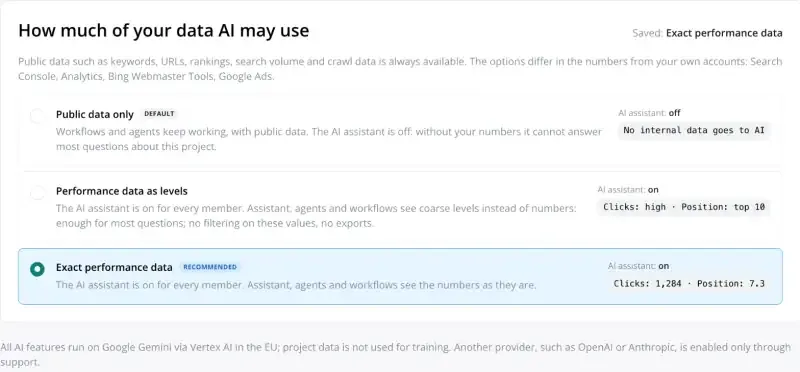
- AI always gets public data and crawl data. The level decides how precisely the numbers from your own accounts come through.
- A project admin sets this in two places. Under Project Settings › AI for the AI assistant, agents and workflows, and under MCP access per person for their own AI tool.
- Every change is logged with person, time and note. No AI can change these settings.
Which data goes to AI?
Always included are public data and crawl data, such as URLs, titles, status codes, keywords, search volume, rankings and index status.
Depending on the level, the numbers from your own accounts are added, from Search Console, Google Analytics, Bing Webmaster Tools and Google Ads. These are for example clicks, impressions, positions, sessions and revenue.
Search queries and page URLs from Search Console are text and go along at every level. The level protects the numbers that belong to them.
The three levels
| Level | What AI receives | Example |
|---|---|---|
| Public data | numbers from your accounts as “withheld” | Clicks: withheld |
| Levels | coarse levels instead of numbers | Clicks: high · Position: top 10 |
| Exact values | all numbers as in the app | Clicks: 1,284 · Position: 7.3 |
Under Project Settings › AI the options are called Public data only, Performance data as levels and Exact performance data.
How coarse the levels are
| Value | Levels |
|---|---|
| Clicks, sessions, users, page views | none (0) · low (1–9) · medium (10–99) · high (100 or more) |
| Impressions | none (0) · low (under 100) · medium (under 1,000) · high (1,000 or more) |
| CTR | none (0) · low (under 1%) · medium (under 5%) · high (5% or more) |
| Position | top 3 · top 10 · top 20 · beyond 20 · not ranking |
| Revenue, conversions, ad spend | none · some |
At Public data and Levels, AI does not filter by these numbers and exports no files. This way the levels cannot be used to work out exact values. Sorting works. The AI assistant draws charts with these values only at Exact values.
AI assistant, agents and workflows
Under Project Settings › AI one level applies to the whole project. It also switches the AI assistant on or off. At Public data only it is off, at the other two options it is on for all members. New projects start with Public data only.
To change it, open Project Settings › AI and choose one of the three options. When you raise the level, you tick the box to confirm that AI use has been approved in your organisation, then save with “Save”. A note helps you trace the decision later.
Agents and workflows with an AI step keep running at every level. At Public data only they work with public data.
Your own AI tools via MCP
The MCP server has its own level per person, under Project Settings › MCP access. New members start with No access, and the Owner gives themselves access too. This level applies independently of the setting under Project Settings › AI. How to connect is explained in Set up and use the MCP server.
Who decides?
- Owner and Admins change the levels, and only in the app. No AI can change them, not even an admin’s AI tool.
- Raising a level needs a confirmation, lowering it does not. The new level applies from the next request.
- “Changes” lists every change with person, time, old and new level and note, for as long as the project exists. Owner and Admins can see this history.
Data protection
The AI assistant, agents and workflows run on Google Gemini via Vertex AI in the EU. No model is trained on project data. What your own AI tool retrieves via MCP is processed by that tool’s provider, under your contract with them. For everyone in your organisation who approves AI use, there is the PDF AI at searchVIU.
Troubleshooting
The AI assistant is missing in the project
The project is set to Public data only. A project admin chooses Levels or Exact under Project Settings › AI.
Numbers show as “withheld” or as levels such as low and high
That is how Public data and Levels look. A project admin can change the level.
“Filtering by performance values … is not allowed”
Below Exact values, AI does not filter by clicks, positions or revenue. Ask without a filter and let AI sort the results, or a project admin switches to Exact.
“Save” cannot be clicked
When you raise the level, the confirmation box still needs to be ticked.
FAQ
Which level is the right one?
With Exact values, AI answers most questions precisely, and the app recommends this option. Levels is enough for many questions and does not reveal exact numbers.
Does the project level also apply to MCP?
No. For MCP, a project admin chooses the level per person under MCP access.
Next steps
Still have a question? Email us at info@searchviu.com.