- The AI assistant answers questions about your project directly in searchVIU. It knows the page you are on.
- It draws charts, adds them to reports and builds whole reports on request.
- A project admin switches it on for all members under Project Settings › AI.
How to ask the assistant
Open the page
Open the report or page you want to ask about. The assistant sees where you are, and on a report it also sees the filters and the rows shown.
Open the assistant
Click the “AI Assistant” icon at the top right, next to your profile picture. The assistant opens in a panel on the right. You can change its width by dragging the left edge.
Ask your question
Type your question into the “Type a message...” field and press Enter. Leave “Fast” selected for quick answers and choose “Deep” for more complex analyses. To add a screenshot, paste it with Ctrl+V or Cmd+V or drag it into the input field.
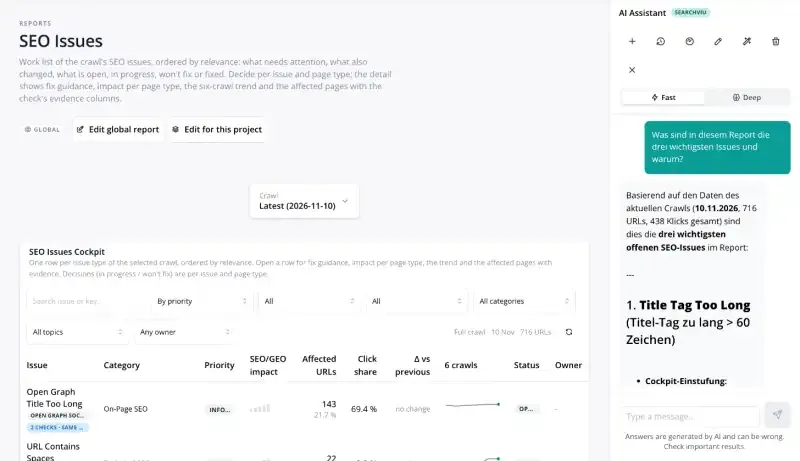
AI assistant in the SEO Issues report of the demo project
What can the assistant do?
- answer questions about reports, crawls and connected data sources such as Search Console
- draw charts in the chat. With “Add to report”, you add a chart to a report as a widget.
- create reports and widgets, set up crawl extractions and query data. For this it uses built-in skills, which you can also choose yourself via the magic wand icon.
- show you the matching report with a button, if it already exists
View or change
Every conversation starts in View mode, so the assistant only reads. Click the pencil icon at the top of the panel to switch on Edit mode. The assistant then changes whatever your role in searchVIU allows, such as creating a report. If it suggests values for a form, you apply them with “Apply Changes”.
Good questions
- “What are the three most important issues in this report, and why?”
- “Which pages are no longer indexable since the last crawl?”
- “Show me the clicks for the last 3 months as a chart.”
- “Build me a report of all pages without a title.” (in Edit mode)
AI can make mistakes. The data comes from searchVIU and the assistant writes the answer.
Switch on the AI assistant
New projects start with Public data only, so the assistant is off. Under Project Settings › AI you choose Performance data as levels or Exact performance data. The assistant is then on for all members of the project. When you raise the level, you tick a box to confirm that AI use has been approved in your organisation. What the levels mean is explained in AI settings and data levels.
Data protection
The AI assistant runs on Google Gemini via Vertex AI in the EU. No model is trained on project data. Only you see your conversations, project admins do not. The clock icon takes you back to your earlier conversations in the project.
Troubleshooting
The “AI Assistant” icon is missing
The project’s AI setting is Public data only. A project admin switches the assistant on under Project Settings › AI.
A chart is missing or a filter is rejected
At the Levels data level, the assistant draws no charts with clicks, positions or revenue and does not filter by these values. Charts from crawl data work at every level.
“This conversation has reached its token budget”
The conversation has become too long. Start a new one with the plus icon “New chat”.
“You've reached the daily AI assistant budget”
Your daily allowance is used up. It covers the last 24 hours, after that you can carry on.
FAQ
How is it different from the MCP server?
The AI assistant works directly in searchVIU. With the MCP server you use your own AI tool, such as Claude or ChatGPT.
Does the AI assistant cost extra?
No, it is part of SEO Monitoring.
Does the setting also apply to agents and workflows?
Yes. The level under Project Settings › AI applies to the assistant, to agents and to workflows with an AI step.
Next steps
Still have a question? Email us at info@searchviu.com.