- You sign in at platform.searchviu.com with your email and password or with your Google account.
- You set up two-factor authentication under Profile › Security, with an authenticator app or SMS. Using both together is the most secure option.
- With “Trust this device” ticked, you stay signed in on your own device for 30 days.
Sign in
- Open platform.searchviu.com.
- If you’re working on your own computer, tick “Trust this device · 30 days”. searchVIU then won’t sign you out during breaks.
- Click “Continue with Google”. Or enter your “Email Address” and “Password” and click “Sign In”.
- With two-factor authentication, searchVIU now asks for a code. Enter it and click “Verify”.
When you sign in with Google, your Google account protects access. You can set up searchVIU’s two-factor authentication on top of that.
Set up two-factor authentication
Once a second factor is set up, searchVIU asks for a code every time you sign in. You’ll find the settings under Profile › Security. Ideally, set up both methods. If you lose one, you can sign in with the other.
Your email address must be verified. If the page shows a notice, click “Send verification email” and open the link in the email. If the “Confirm it's you” dialog appears, confirm with your password or with “Confirm with Google”.
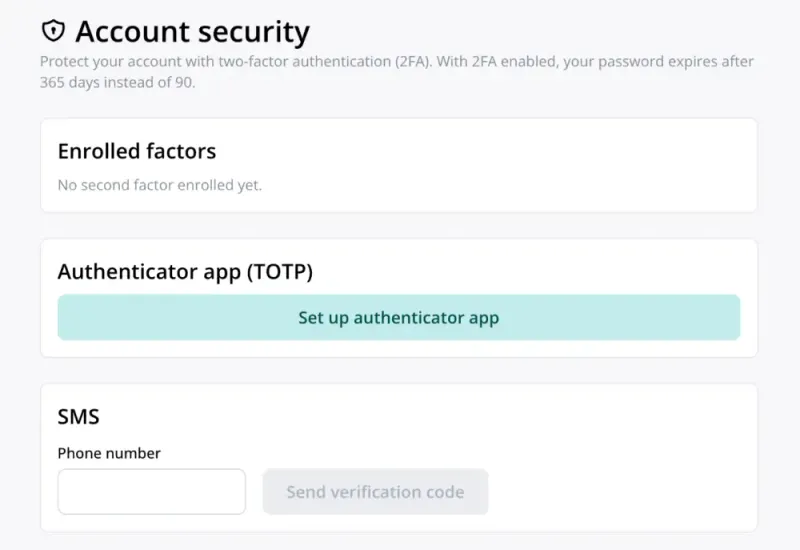
Set up an authenticator app
- In the “Authenticator app (TOTP)” card, click “Set up authenticator app”.
- Scan the QR code with your app, such as Google Authenticator or 1Password.
- Enter the 6-digit code from the new “searchVIU” entry and click “Verify & enable”.
Set up SMS
SMS messages go to mobile numbers from Germany, Austria, Switzerland and the USA.
- In the “SMS” card, enter your number with the country code, such as +49, and click “Send verification code”.
- Enter the code from the SMS and click “Verify & enable”.
Both methods are then listed under “Enrolled factors”. Use “Remove” to delete one again.
Lost or changed your phone?
- You still have the old phone. Set up the factor on the new phone, then remove the old one.
- A second method is set up. Sign in with it and set up the lost factor again.
- Both methods are gone. Write to info@searchviu.com. The searchVIU team verifies your identity and resets two-factor authentication.
If you’re still signed in on the lost device, click “Sign Out” on another device. This ends your sessions everywhere.
Reset or change your password
- On the sign-in page, click “Forgot Password?”, enter your email address and click “Send Reset Link”.
- Open the email with the subject “Passwort für searchVIU zurücksetzen” and click the link. It is valid for one hour.
- Enter the new password twice and click “Reset Password”.
The password needs at least 12 characters with upper- and lower-case letters, a digit and a special character. Your two-factor authentication stays active. To change your password, sign out and follow the same steps.
When does searchVIU sign you out?
| Sign-in | Sign-out when inactive | Maximum session length |
|---|---|---|
| without “Trust this device” | after 20 minutes | 8 hours |
| with “Trust this device” | never | 30 days |
A minute beforehand, a “Still there?” dialog appears. Click “Stay signed in” to keep working.
You can sign out yourself at the top right via your profile and “Sign Out”. This applies to all devices and browsers. To disconnect AI tools, follow the steps under Disconnecting.
- Each person sets up two-factor authentication for their own account. Recommend it to everyone in the project.
- If an account is locked or a second factor is lost, the searchVIU team helps via info@searchviu.com.
- When someone leaves the team, remove them from the project (Team invitations and roles).
Data protection
Sign-in runs on Google’s Firebase Authentication in data centres in the USA, on the basis of the EU-US Data Privacy Framework and standard contractual clauses. searchVIU sends password reset emails via Twilio’s SendGrid. Your project data is stored in the EU. Certificates and subprocessors are listed on the Security page.
Troubleshooting
“Invalid email or password”
Check your address and password, or reset your password via “Forgot Password?”. If you’ve signed in with Google before, use “Continue with Google”.
“Account temporarily locked”
After 5 failed attempts within 15 minutes, searchVIU locks sign-in for 15 minutes. Wrong codes for the second factor count too. Wait for the countdown to finish or write to info@searchviu.com.
“This link has expired.”
The reset link is valid for one hour and can only be used once. Click “Request a new link”.
Your projects are missing after you sign in
You are probably signed in with a different address, such as a personal Google account. Sign in with the address your invitation was sent to.
FAQ
Is two-factor authentication mandatory?
It is optional and available for every account. We recommend it to everyone who works with searchVIU.
Do I have to enter the code every time I sign in?
Yes, every time you sign in again, even with “Trust this device”. The tick only extends the session.
Does two-factor authentication also apply to AI tools?
Yes. An AI tool you connect via MCP opens a searchVIU sign-in page. The same account and the same code apply there. If you don’t use the tool for 90 days, you sign in again once.
Next steps
Still have a question? Write to us at info@searchviu.com.