- Owner and Admins bring colleagues, your agency or IT into the project by email. The invitation is valid for 7 days.
- There are three roles to choose from. Admin manages the project, User works with it and Read Only reads.
- Additional users cost nothing extra.
The four roles
Roles apply per project. All members of a project see its reports.
- Owner is whoever created the project. The Owner has all the rights of an Admin.
- Admin manages members, roles and access for AI.
- User works with reports, crawls, SEO Issues and data sources.
- Read Only reads reports and exports data. In “Your Projects” the role is called “Viewer”.
Who can do what?
| Task | Owner | Admin | User | Read Only |
|---|---|---|---|---|
| View and export reports and crawl data | yes | yes | yes | yes |
| Use the AI assistant and MCP server to read, once given access | yes | yes | yes | yes |
| Create reports and change your own | yes | yes | yes | – |
| Start crawls | yes | yes | yes | – |
| Rate and ignore SEO Issues | yes | yes | yes | – |
| Connect data sources such as Search Console | yes | yes | yes | – |
| Change and delete other people’s reports | yes | yes | – | – |
| Make changes through your own AI tool | yes | yes | – | – |
| Manage members, AI access and team channels | yes | yes | – | – |
| Change other people’s data connections | yes | – | – | – |
Everyone switches off their own notifications under Profile › Notifications, separately for each project.
Invite someone
Open the members page
The page is under Project Settings › Project Members. In “Your Projects” the people icon “Manage members” also takes you there.
Enter the address and role
In the “Add New Member” form, enter the email address and choose Admin, User or Read Only under “Role”. User is preselected. If you leave “Groups” empty, the person ends up in the “Default” group.
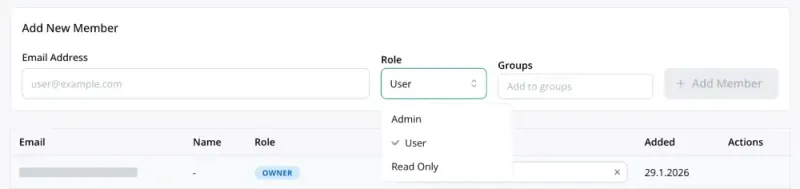
“Add New Member” form with the “Role” menu open in the demo project Add the member
Click “Add Member”. If the app asks about a new domain, confirm with “Add anyway”. If the person does not have a searchVIU account yet, the invitation goes out with “Send Invitation”. Anyone who already has an account becomes a member straight away.
Check the status
Until they set their first password, the person shows as “Pending”. The envelope icon “Resend invitation” sends them a new link.
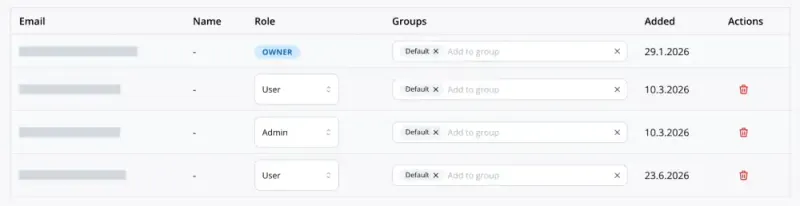
Member table in the demo project, email addresses greyed out
What does the invited person receive?
The invitation comes from info@searchviu.com and is valid for 7 days. Via “Set password & get started” and then “Set password”, the person sets their password. When they sign in for the first time, they enter their company and tick three required boxes for the terms and conditions, the data processing agreement and the privacy policy. Anyone who already has an account only gets a short email.
Groups for notifications
A person can belong to several groups, such as “Content” or “Dev”. This way notifications reach the right people. Which notifications go to which group is something we agree with you when you start.
Change a role or remove someone
You change roles and groups directly in the member table. If an Admin becomes a User or Read Only, their AI tool can only read from then on.
To remove someone, click the bin icon “Remove member” and confirm with “Remove”. From their next action, the person no longer has access to the project, not even through their AI tool. Their account stays in place for other projects.
Data connections such as Search Console can only be changed by whoever created them, or by the Owner. That is why it is best to connect them with an account that stays with the team.
- Under Project Settings › MCP access you give each person MCP access and choose a data level. The AI tool of the Owner and Admins can change whatever their role allows. Everyone else reads. More in Set up and use the MCP server.
- We set up custom alert rules for you, also per segment.
Data protection
- Everyone signs in with their own account. All members see the names and email addresses of the others.
- searchVIU stores access decisions for AI and MCP with person, time and note.
- For support and operations, the searchVIU team can access the project without appearing in the member list.
- Project data is stored in the EU. Everything about data processing and certifications is on the Security page.
Troubleshooting
The “Manage members” icon is missing
You have the User or Read Only role. An Owner or Admin can invite the person.
“Your invitation link has expired.”
The link is older than 7 days or has been replaced by a new invitation. The person requests a new one on the same page.
“This link is invalid or has already been used”
After clicking “Set password”, the password link is valid for one hour. The person opens the invitation email again and clicks “Set password” once more.
“You do not have permission to modify widgets on this report”
As a User you only change your own reports. Duplicate the report or ask an Admin.
FAQ
Does an additional user cost anything?
No, additional users cost nothing extra.
Can I invite our agency or a freelancer?
Yes. External people are normal members with their own account and the role you choose for them.
Can I change the Owner?
Yes. Email us at info@searchviu.com and we will change the Owner for you.
Does my team have to use two-factor authentication?
It is optional. Everyone sets it up themselves under Profile › Security.
Next steps
Still have a question? Email us at info@searchviu.com.