- With the MCP server, your AI tool works directly with your projects and reports in searchVIU, for example Claude, ChatGPT or Copilot.
- You add the server URL in your AI tool and sign in with your searchVIU account.
- A project admin decides for each person which projects your AI tool reads data from and how exact the numbers are.
What can your AI tool do with it?
Your AI tool reads the reports of the projects you have been given access to. In the chat, it uses them to answer questions about your website, summarise reports or compare two crawls.
| Task | How you could ask |
|---|---|
| Find reports | “Which reports are there on redirects?” |
| Analyse reports | “Which 404 pages still get clicks from Google?” |
| Compare crawls | “What changed in the latest crawl compared with the previous one?” |
| Analyse AI visibility | “For which prompts does AI recommend a competitor instead of us?” |
| Make changes | “Create a report of all pages without a title.” |
Whether your AI tool can also make changes depends on your role. The AI tool of the Owner and Admins makes changes within their role, such as creating a report. For everyone else, it only reads. No AI tool can change the AI settings.
What you need
- a searchVIU account with access to the project
- MCP access in this project, given to you by a project admin
- an AI tool that connects MCP servers by URL with sign-in. With Claude this already works on the Free plan, with ChatGPT from Plus.
Connected in four steps
Copy the server URL
https://gateway.searchviu.com/v2/mcpIn searchVIU, you’ll also find it under Project Settings › MCP access in the “Connect your client” box.
Add it in your AI tool
Claude
- In Claude on the web or in the desktop app, open Customize › Connectors and click “+ Add”.
- Choose “Add custom connector”, enter searchVIU as the name and paste the server URL.
- Click “Add”. Claude then takes you to the searchVIU sign-in.
In Claude, tools that change something are set to “Needs approval”, so Claude asks before every change. On Team and Enterprise plans, an Owner adds the connector under Organization settings › Connectors. Each member then connects on their own.
Claude Code
claude mcp add --transport http searchviu https://gateway.searchviu.com/v2/mcpThen enter
/mcpin Claude Code, choose searchviu and confirm “Authenticate”. With--scope user, the server is available in all your projects.ChatGPT
- In ChatGPT on the web, open the Plugins page, click “Add” at the top right and choose “Add custom MCP server”.
- Enter searchVIU as the name and paste the server URL. ChatGPT detects the OAuth sign-in by itself.
- Tick “I understand and want to continue” and click “Create as a plugin”. Then connect searchVIU and sign in.
- In the chat, choose searchVIU under “Plugins”.
Custom MCP servers are available from the Plus plan. On Business plans, admins add the plugin. ChatGPT asks before carrying out changes.
VS Code
Open the Command Palette, choose “MCP: Add Server” and then HTTP. Paste the server URL and enter searchviu as the ID. When you first connect, VS Code opens the sign-in in your browser. In the
mcp.jsonfile, the entry looks like this:{ "servers": { "searchviu": { "type": "http", "url": "https://gateway.searchviu.com/v2/mcp" } } }On Copilot Business and Enterprise, an admin first turns on the “MCP servers in Copilot” policy in GitHub.
Cursor
Add the server to
~/.cursor/mcp.jsonor create it under Customize. When you first connect, Cursor opens the searchVIU sign-in.{ "mcpServers": { "searchviu": { "url": "https://gateway.searchviu.com/v2/mcp" } } }Other
Any AI tool or custom agent that speaks MCP over Streamable HTTP with OAuth sign-in can connect, for example an agent in Microsoft Copilot Studio. You don’t need an API key for this, because sign-in runs through your searchVIU account.
Sign in with searchVIU
Your AI tool opens the searchVIU sign-in page in your browser. It shows which tool wants to connect and where it will send you back afterwards. If that’s correct, sign in as usual, with a second factor if you have set one up. Your AI tool gets no more than your own permissions.
Test the connection
Ask your AI tool: “Show me my searchVIU projects.” It lists all projects you are a member of and shows which ones it can already read data from.
Give access
For MCP, every project is closed until you give individual members access. You do this under Project Settings › MCP access in the “Access per member” table.
- Choose a level for each member, meaning No access, Public data, Levels or Exact values. Do this for yourself too, because new members and the Owner start with No access.
- When you raise a level, you tick a box to confirm that these members’ AI tools may receive the data and that it goes to the tool’s provider. A note helps you trace the change later.
- Click “Save”. You can take access back at any time without confirming, and it applies from the next request.
Every change is listed under “Changes” with person, time and note. An AI tool cannot change this setting, not even with admin rights.
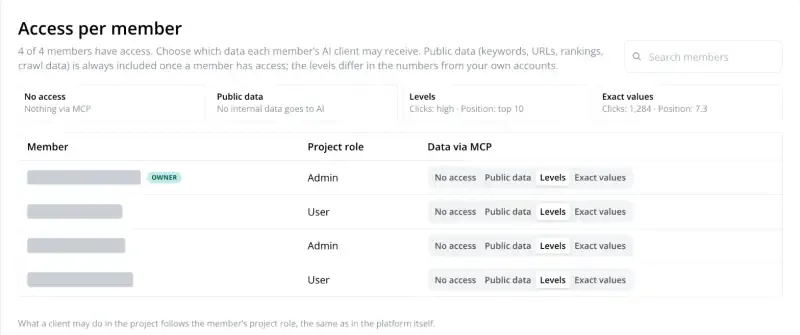
Which numbers does your AI tool see?
Your AI tool gets public data such as crawl results, URLs, keywords and search volume at every level. The level decides how exact the numbers from your own accounts are, meaning clicks, impressions and positions from Search Console, or sessions and revenue from GA4.
| Level | What your AI tool gets | Example |
|---|---|---|
| No access | nothing from this project | – |
| Public data | public data, numbers from your accounts as “withheld” | Clicks: withheld |
| Levels | levels instead of exact numbers | Clicks: high · Position: top 10 |
| Exact values | all numbers as in the app | Clicks: 1,284 · Position: 7.3 |
More on this in AI settings and data levels.
Good to know
- The MCP server is included in SEO Monitoring. You pay for your AI tool with its provider.
- Each call returns 100 rows per table, 1,000 at most. For longer lists, your AI tool asks several times.
- If you don’t use your AI tool with searchVIU for 90 days, you sign in once more.
- Name the project in your question and, if you know it, the report.
- AI can make mistakes. The data comes from searchVIU and your AI tool writes the answer.
Data protection
Whatever your AI tool fetches via the MCP server is then processed by that tool’s provider, under your contract with them. So before you give access, check how they handle your data, for example for training. In ChatGPT, the “Improve the model for everyone” setting in Data Controls covers this. More in the PDF AI at searchVIU and on the Security page.
Disconnect
You can remove the connection in your AI tool at any time. A project admin takes back access by setting your level under Project Settings › MCP access to No access. From then on, the MCP server returns nothing from this project.
Troubleshooting
“This project is not released for MCP access” or “Your user is not released …”
You don’t have MCP access in this project yet. A project admin gives it to you under Project Settings › MCP access. You can also see your current level there.
A project is missing from the list
Your AI tool only lists projects you are a member of. An Owner or Admin of the project can invite you.
Numbers show as “withheld” or as levels, and filters and exports are rejected
Your data level is Public data or Levels. At these levels your AI tool doesn’t filter by clicks or positions and doesn’t export files. Sorting works. A project admin can change the level.
Sign-in doesn’t work
First check whether you can sign in to searchVIU in your browser. Then remove the connection in your AI tool, add it again and sign in once more.
ChatGPT: “Connect” keeps spinning, searchVIU isn’t available in the chat
The sign-in wasn’t completed. Under Plugins, open searchVIU, click “View details” and then “Continue connecting app”.
FAQ
Does the MCP server cost extra?
No. The MCP server is included in SEO Monitoring, from €399 a month with 50,000 URLs included.
What’s the difference from the AI assistant?
The AI assistant works directly in searchVIU and runs on Vertex AI in the EU. With MCP, you use your own AI tool with the provider of your choice.
Does my AI tool ask before making changes?
Claude and ChatGPT ask before using tools that change something. Only the AI tool of the Owner and Admins can make changes anyway.
Next steps
Still have a question? Write to us at info@searchviu.com.