- You join the project by invitation. The link in the email from info@searchviu.com is valid for 7 days.
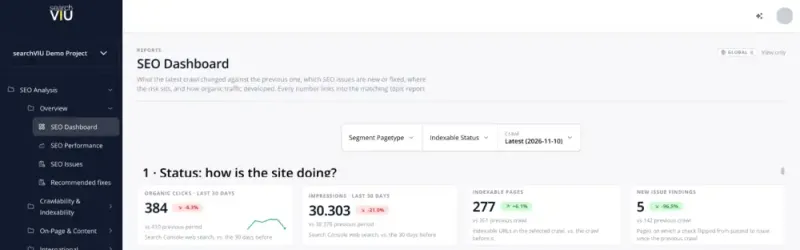
- After you sign in, your project’s start page opens, usually the SEO Dashboard.
- Reports show the latest completed crawl compared with the crawl before it.
Before you start
- To get started, your team allows the crawler and connects Search Console, see Allow the crawler and Connect Search Console.
- All names in this guide are written as they appear in the app.
Where do you find what?
| You want to … | Where to find it |
|---|---|
| see what the latest crawl changed | SEO Analysis › Overview › SEO Dashboard |
| know what needs attention now | SEO Analysis › Overview › SEO Issues |
| check a topic, such as redirects | SEO Analysis › Crawlability & Indexability › Redirects |
| see what changed on a URL | SEO Analysis › URL History |
| switch notifications on and off | Profile › Notifications |
At the top left of the sidebar, “Switch Project” changes the project. The menu below shows the modules you have booked and the areas your role can see.
Your profile picture at the top right takes you to Notifications, Security and MCP. If the AI assistant is switched on in the project, you open it with the sparkle icon next to it. AI can make mistakes.
Six steps through your project
Accept the invitation
In the invitation email, click “Set password & get started” and then “Set password”. Your password needs at least 12 characters with upper and lower case letters, a number and a special character. If you already have an account, “Go to searchVIU” in the email takes you straight to the project.
Sign in
Sign in at platform.searchviu.com with your email address and password. The first time, the “Welcome to searchVIU” window asks for your company and three consents, which you submit with “Send”.
Choose and compare crawls
At the top of the SEO Dashboard and the topic reports, the “Crawl” field shows the latest completed crawl, and under “Specific crawl” you choose an older one. Each tile shows the value from the previous crawl with “vs … previous crawl”. In some reports the “Live | Daily” switch toggles between the weekly full crawl and the daily check of the most important pages.
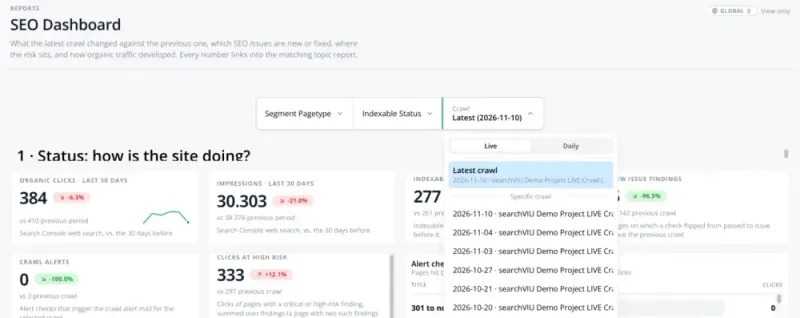
“Crawl” field in the SEO Dashboard of the demo project Go through SEO Issues
The crawl’s work list is in SEO Analysis › Overview › SEO Issues, in the “SEO Issues Cockpit”. Each row is one problem, sorted by relevance. Open a row to see fix guidance, the trend over six crawls and the affected pages with evidence.
Track a URL
In SEO Analysis › URL History you see the crawls of a URL with screenshots, plus traffic and rankings from Search Console. If an important page loses clicks, compare a crawl from before with one from after in the diff view. HTML and screenshots are kept for 6 months.
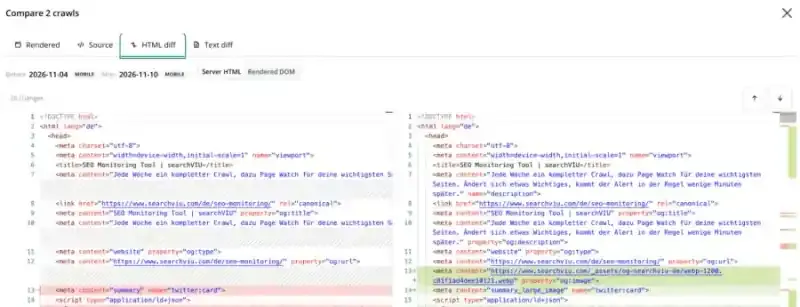
HTML diff of a searchviu.com URL in the URL History Set up notifications
Which notifications go to whom is something we agree with you when you start.
You switch your own on and off per project under Profile › Notifications. With “Add channel” you also receive them in Microsoft Teams, Slack or via webhook.
- Invite your team: Project Settings › Project Members › “Add New Member”, see Invite your team and assign roles.
- Notifications for the whole team: Project Settings › Notification Channels.
- AI assistant and MCP: Project Settings › AI and Project Settings › MCP access.
- New project: searchVIU creates projects. Email info@searchviu.com for this.
Data protection
Project data is stored in the EU. The searchVIU team can access your project for support and operations and does not appear in the member list. More on the Security page.
Troubleshooting
“Your invitation link has expired.”
The invitation is older than 7 days. Request a new link on the same page with “Send Reset Link” or ask your project admin to use “Resend invitation”.
“This link is invalid or has already been used.”
Often an email scanner opened the link first. Request a new one via “Forgot Password?”.
“No projects yet”
Your account does not belong to a project yet, for example because the invitation went to a different address. Ask your project admin to invite the right one.
“No crawls found” or “analysis running”
The crawl is still being analysed. After that the reports fill up, and comparison values appear from the second crawl.
FAQ
What can I do with my role?
Admin manages the project with its members and settings. User works with it and, for example, sets the status of SEO Issues. Read Only reads. Owner is assigned when the project is created and has all the rights of an Admin.
How often does searchVIU crawl?
The full crawl runs weekly. Page Watch checks the most important pages, from 1,000 depending on the project, continuously throughout the day.
Does another account in the team cost anything?
No, additional users cost nothing extra.
Next steps
For questions about your project or SEO Monitoring, email us at info@searchviu.com.